Extracted text
The full text from your image appears here, exactly as it reads — check it line by line.
Copy · TXT · DOC · PDF
Drop in a screenshot, a photo of a page or a scan. You get two things back: the text exactly as it appears, and a short summary of what it says. One tool, two jobs — read the words out of the picture, then summarize the text from the image. No signup, no installation, nothing to configure.
Drop or paste an image here
Ctrl + V works — paste a screenshot straight from your clipboard.
JPG · PNG · WEBP · HEIC · GIF · BMP — up to 20 MB each, up to 10 images at once.
The full text from your image appears here, exactly as it reads — check it line by line.
Copy · TXT · DOC · PDF
Key points, a short paragraph or an outline — switch between the three.
Copy · TXT · DOC · PDF
Your image is used to extract the text and deleted right after. We don't store it, share it, or train on it.
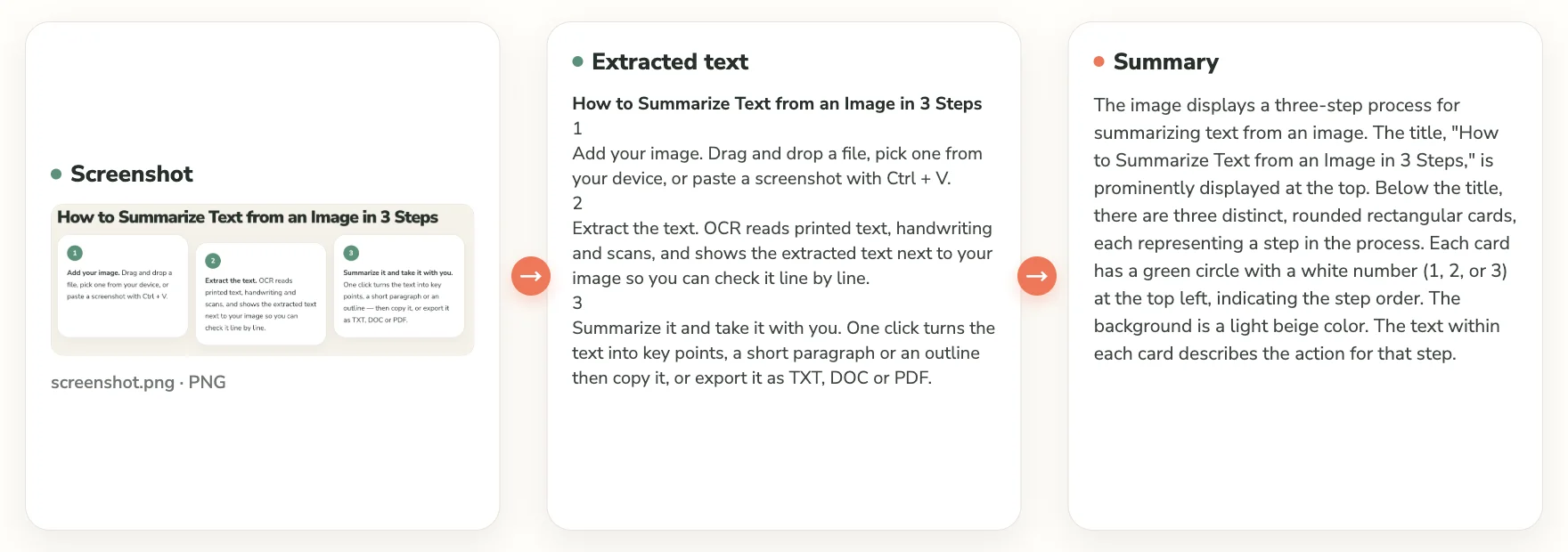
Add your image. Drag and drop a file, pick one from your device, or paste a screenshot with Ctrl + V.
Extract the text. OCR reads printed text, handwriting and scans, and shows the extracted text next to your image so you can check it line by line.
Summarize it and take it with you. One click turns the text into key points, a short paragraph or an outline — then copy it, or export it as TXT, DOC or PDF.
Web pages, chat threads, dashboards, error messages, long social posts.
Forms, invoices, receipts, contracts, business cards, slides shot on a phone.
Lecture notes, whiteboards, margin comments. Printed text comes back close to perfect; handwriting depends on how clear the writing is, and we flag any line we're unsure about instead of guessing.
Axis labels, legends, data labels, series names, table cells.
If a number only exists as the height of a bar, there is no text to read: the summary will tell you the data is visual rather than invent a figure. We'd rather leave a gap than hand you a plausible wrong number.
These are two different jobs, and most tools only do the first one.
Extraction is a transcription problem: get every character out of the image, in order, in the right language. That's what OCR does — and it's why a plain OCR tool hands you back a wall of text you still have to read.
Summarization is a comprehension problem: work out what the image is actually saying, keep what matters, drop the rest, and put it in your own language.
We do both, in one pass. Upload a photo of a three-page contract and you get the full text and a five-bullet summary of the terms that matter. Upload a screenshot of a long article and you get the words and the argument. And because the two steps are separate, you can run either one on its own: extract text from an image without summarizing, or paste in text you already have and summarize that.
Long chat threads, social posts, tables in an app that won't let you copy — screenshot it, get text you can paste.
Photograph the whiteboard or the slide, walk away with an outline.
Scan a page, get searchable text plus a summary of the key terms, dates and amounts.
Pull the labels and numbers out of a chart or table, then summarize what the figure shows.
Extract the text, then get the summary in the language you want.
| Plain OCR | summarizeimages.com | |
|---|---|---|
| Output | One block of text | Extracted text and a summary |
| Long images | You still read all of it | Key points, paragraph or outline |
| Handwriting | Often silently wrong | Flagged when we're unsure |
| Charts | Labels only, no context | Labels plus what the figure means |
| Export | Copy and paste | TXT, DOC, PDF |
| Cost | Free tiers, size caps | Free, no account, 20 MB per image |
Yes. This page does exactly that: the image goes in, the text comes out, and a summary is generated from that text. Both are shown on screen at the same time.
Upload or paste the image, let it extract the text, then hit Summarize. The summary is generated from the extracted text, so if you edit that text first, the summary follows your edit.
That's the extraction step — it runs as soon as your image is uploaded, before you summarize anything. Copy the text panel directly, or export it as TXT, DOC or PDF.
Usually yes, and it's honest about it: clear handwriting converts well, messy handwriting less so, and any line the tool isn't confident about is marked instead of guessed.
Yes — screenshots are the most common input here. Any size, any app, including long scrolling captures and dark-mode interfaces.
It reads the text inside them: axis labels, legends, data labels, series names, table cells. Numbers that only exist as a drawing — bar heights, unlabelled trend lines — are described, not invented.
JPG, PNG, WEBP, HEIC, GIF and BMP, up to 20 MB each, up to 10 images per batch. Multi-page PDFs have their own page.
Free, no account, no email. Your image is processed to extract the text and deleted straight after — it isn't stored, shared or used for training.
Yes, separately or together: copy to clipboard, or export as TXT, DOC or PDF.
Working with something other than an image?
Guides: